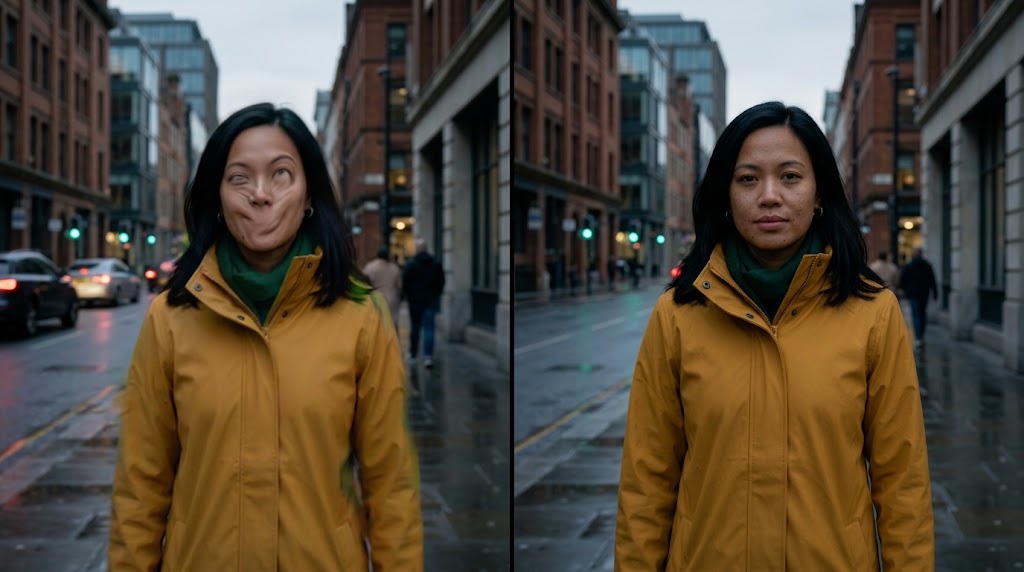
It's 3:45 AM and you're on your fourteenth generation of the same five-second shot. The brief was simple: a woman in a mustard raincoat walks toward the camera down a wet street while the camera slowly pulls back. What you got on take fourteen is a woman who has quietly become a different woman, a raincoat that changed from mustard to khaki halfway through the clip, and a camera that did something between a dolly and a seizure.
You aren't bad at this. Almost everyone hits this wall, and the wall has a shape. Generative video models don't "film" anything. They predict plausible pixels frame by frame, and when your prompt is vague about motion, the model fills the gap with its own guesses. Those guesses are what you experience as jitter, drift, and morphing.
This guide is about taking those guesses away from the model. You'll get a way of thinking about camera and character as two separate problems, plus prompt formulas you can paste into Runway Gen-3 and Sora today.
A note before we start: these tools change monthly. Runway has shipped newer models since Gen-3, and Sora's feature set has moved too. On price, Runway gives new accounts 125 one-time credits, and Standard costs $15 a month or $12 a month on yearly billing, according to Runway's pricing page. The principles below hold across versions, but check the current UI for exact control names and ranges before you commit a budget to a project.
Why Your AI Video Morphs and Wobbles
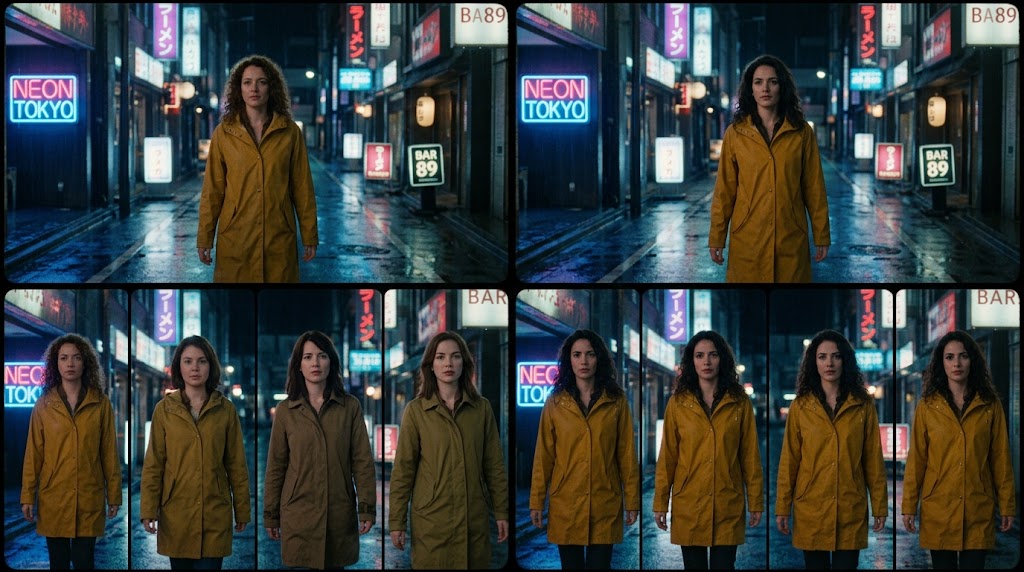
Two separate failures get lumped together as "AI weirdness."
Failure one is camera ambiguity. If you write "cinematic shot of a city," you haven't told the model whether the camera moves, how fast, or in what direction. So it invents motion, and invented motion is usually inconsistent from frame to frame.
Failure two is identity drift. The model has no persistent memory of your character. Every frame is a fresh act of imagination anchored loosely to the previous ones. The longer the clip and the more motion in it, the more the face, clothing, and proportions wander.
Treat them as two problems with two toolkits. Camera is mostly solved with explicit, singular, physically described motion. Identity is mostly solved with anchoring: starting from a reference image, repeating the same descriptors, and keeping each shot short.
Part One: Directing the Camera
Runway Gen-3: Using the Camera Controls
Runway's Gen-3 Alpha tooling (the "Director mode" most creators search for) exposes camera movement as dedicated controls rather than leaving it to your prose. In the versions that offer it, you get separate sliders for horizontal movement, vertical movement, pan, tilt, zoom, and roll, each adjustable in both directions.
The single most useful habit: move one axis at a time. Every slider you push adds another thing the model must reconcile with your scene. A slow zoom on its own looks like a camera operator. Zoom plus pan plus roll looks like a washing machine.
A working starting point:
| Shot you want |
Slider setting |
Intensity |
| Slow push-in on a face |
Zoom in |
Low (about 1 to 2 out of 10) |
| Reveal sweep across a room |
Horizontal or pan |
Low to medium |
| Rising establishing shot |
Vertical up |
Low |
| Dramatic Dutch angle drift |
Roll |
Very low, or skip it |
Keep intensities low at first. High values force large changes in the frame, and large changes are exactly where the model starts inventing faces and objects to fill new territory. Push values up only after a gentle version works.
Pair sliders with matching prose. If your slider says zoom in, your text should agree, not compete. Contradiction between the two inputs is a reliable source of mush.
The Camera Prompt Formula
Whether or not your tool offers sliders, this structure keeps motion unambiguous:
[Shot size] of [subject doing one action], [location + lighting].
Camera: [one movement], [speed], [direction/end-state].
Lens/feel: [focal length or film look].
Example (Runway or Sora):
Medium shot of a woman in a mustard yellow raincoat walking toward camera
on an empty wet street at dusk, neon reflections on the asphalt.
Camera: slow steady dolly backward, keeping her centered in frame.
Lens/feel: 35mm, shallow depth of field, soft film grain.
Notice the specifics. "Slow steady dolly backward" is a motion the model has seen thousands of times in training footage. "Dynamic cinematic camera" is a mood the model has to translate, and it translates it differently every time.
Camera Vocabulary That Tends to Work
Models respond best to terms real cinematographers use:
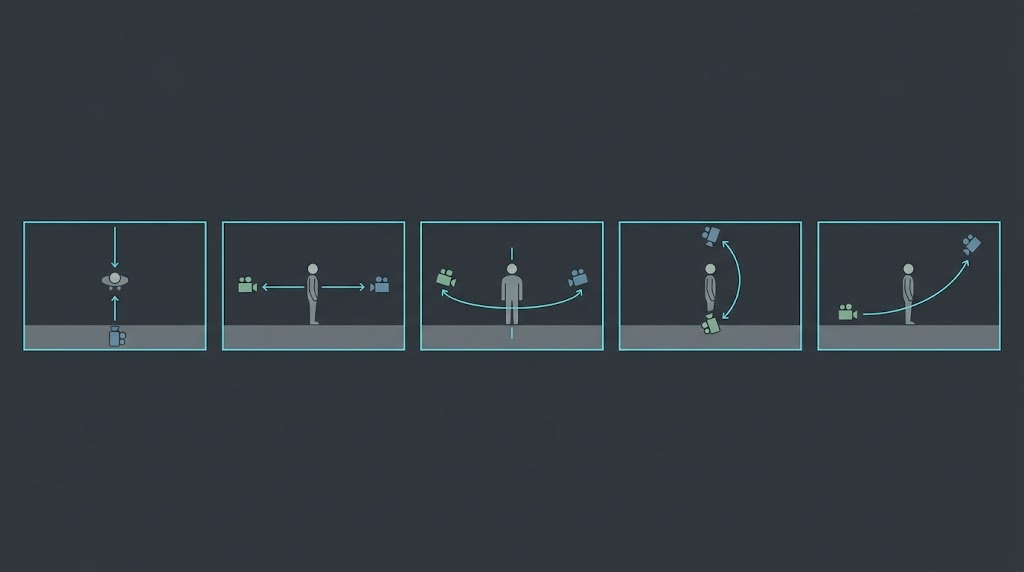
- Dolly in / dolly out: the whole camera physically moves toward or away from the subject.
- Truck left / right: the camera slides sideways, parallel to the scene.
- Pan / tilt: the camera pivots in place, horizontally or vertically.
- Crane up / pedestal: the camera rises or lowers vertically.
- Orbit / arc: the camera circles the subject. Hard for most models, so keep it short and slow.
- Locked-off / static tripod: the explicit instruction for no camera motion. Underrated. When you want the subject to move and the world to hold still, say so.
Sora: Prompt-Driven Cameras
Sora's approach leans on language rather than sliders, so the discipline moves into your prompt. Describe the camera as a physical object doing one thing, and describe where it ends up.
A single continuous shot. The camera begins on a close-up of a hand
turning a brass key in an old door, then slowly pulls back and rises
to reveal the hallway behind it. No cuts. Handheld stability, subtle
natural sway. 24mm lens, warm tungsten practicals.
Two Sora-specific habits help. First, include "single continuous shot" or "no cuts" when you want one coherent take, because models sometimes treat a long prompt as a licence to cut. Second, describe the start and end state of the move ("begins on X, ends on Y") so the model has a destination, not just a direction.
Part Two: Keeping Your Character the Same Person
Camera control is the easier half. Identity is where projects go to die.
Anchor With an Image, Not Just Words
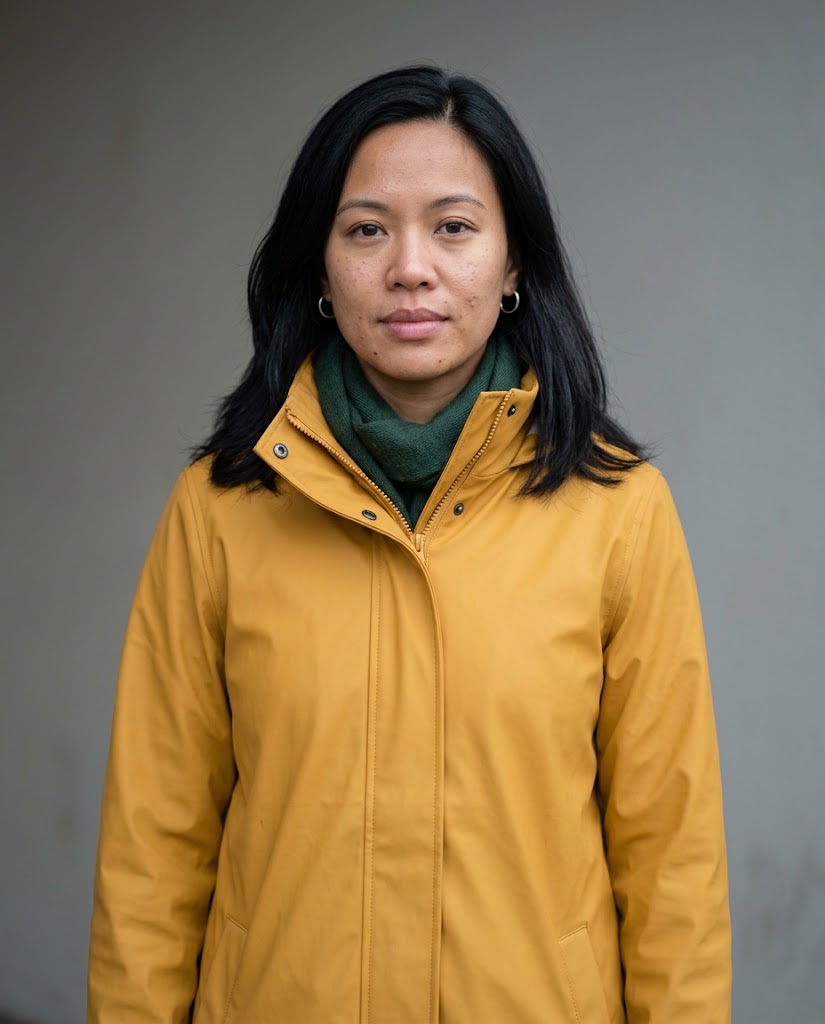
Text-to-video asks the model to imagine your character from scratch every generation. Image-to-video gives it a face to hold onto. For anything beyond a throwaway clip, build your character as a still image first (in an image generator of your choice), then animate from that frame.
The practical workflow:
- Generate or choose one strong, front-facing hero image of your character with clean lighting.
- Use it as the first frame for each shot.
- Describe only the motion in your video prompt, since the image already carries the appearance.
That last point trips people up. When you re-describe the character in text and supply an image, small mismatches between the two create tension, and the model often resolves it by drifting. Let the image do the describing.
Both platforms also offer more dedicated identity features. Sora has had character and cameo tools, and Runway has added reference-based approaches in newer models than Gen-3. If your account has them, try them before building a workflow around prompts alone.
The Character Lock Block
For text-driven shots, or to reinforce an image, write one fixed description and paste it identically into every prompt. Don't paraphrase. Paraphrasing is how a mustard raincoat becomes khaki.
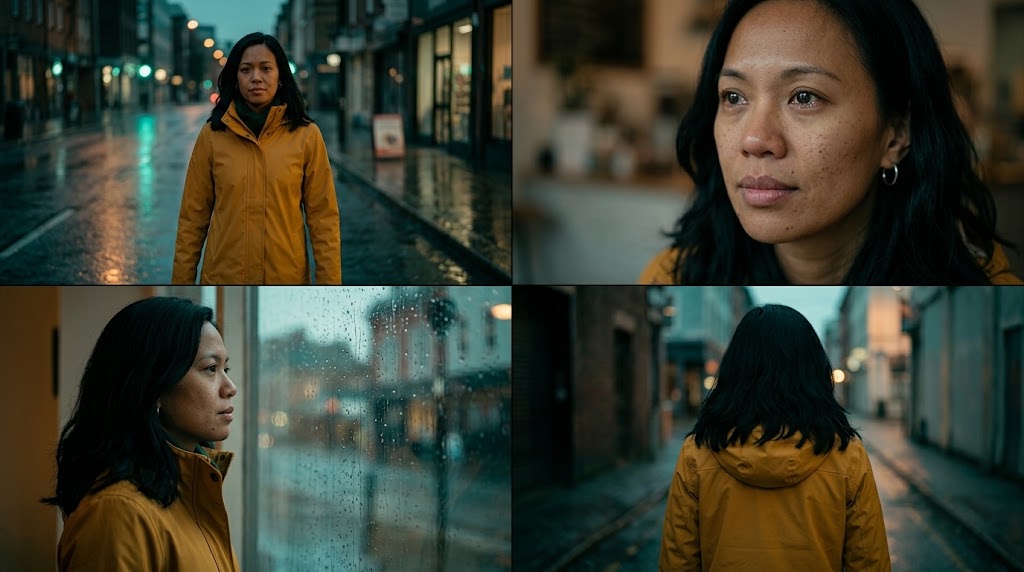
CHARACTER: Maya, a woman in her early 30s, shoulder-length black hair
with a side part, light brown skin, small silver hoop earrings, mustard
yellow waterproof raincoat with a high collar, dark green scarf.
Then each shot becomes:
[CHARACTER BLOCK] Medium shot, Maya walks toward camera on a wet street
at dusk. Camera: slow dolly backward. 35mm, soft grain.
Rules That Protect Identity
- Shorter clips beat longer ones. Drift compounds with duration. Five clean seconds you can edit together beat ten seconds that decay.
- Reduce simultaneous motion. A character walking while the camera orbits while rain falls is three drift sources. Cut one.
- Favor three-quarter and front angles. Faces turning fully away and back again are a classic point of identity loss.
- Keep wardrobe simple. Mustard raincoats survive. Intricate patterns, layered jewelry, and text on clothing do not.
- Keep lighting consistent across shots. Changing from golden hour to neon night makes the model rebuild the face under new light, and it rarely rebuilds it identically.
- Cut away. Professional editors hide imperfection all the time. A reaction shot, a hands close-up, or an over-the-shoulder angle gives you coverage where identity matters less.
Reality Check: Friction and Trade-Offs
No guide should pretend this is smooth, so here are the honest edges.
Camera sliders are blunt. They give you direction and rough intensity, not a precise path. You can't ask for "exactly 15 degrees of pan over 3.2 seconds." Expect to iterate, and expect two or three takes of the same setting to differ.
Low intensity is safer but less dramatic. The gentle moves that look believable can also look timid. Plan to add energy in the edit with speed ramps, cuts, and sound design, instead of demanding it from a single generation.
Consistency has a ceiling. Even with a locked image and a locked description, a character can shift subtly across ten shots. Expect to curate: generate several takes per shot and keep the best, the way a photographer shoots a roll and picks a frame.
Sora favors language; Runway favors direct controls. If you think in cinematography, Runway's sliders feel like a rig. If you think in sentences, Sora feels natural. Neither is universally better, and which one wins depends on the shot.
Pros and Cons at a Glance
Explicit camera prompting and controls
- Pros: Repeatable looks, fewer wasted generations, and results that feel directed instead of random.
- Cons: Requires learning cinematography vocabulary, and precision is still limited.
Image-first character anchoring
- Pros: The strongest consistency improvement available to most creators, and it lets you design the character once.
- Cons: Adds a step, and drift still creeps in over long sequences.
Short-clip, edit-heavy workflow
- Pros: Highest hit rate, and the best fit for how video is actually cut.
- Cons: More assembly time, and it demands basic editing skill.
The Copy-Paste Shot Library
Swap in your own character block and subject.
The slow push-in (emotion):
[CHARACTER BLOCK] Close-up, she listens, eyes glistening, a faint breath.
Camera: very slow dolly in, steady. 50mm, shallow depth of field,
soft window light.
The reveal pull-back (context):
Begins tight on [detail]. Camera slowly pulls back and rises to reveal
[wider scene]. Single continuous shot, no cuts. 24mm, natural light.
The locked-off performance (maximum stability):
[CHARACTER BLOCK] Locked-off static tripod shot, medium close-up.
She turns her head toward the window and exhales. No camera movement.
The tracking walk (energy):
[CHARACTER BLOCK] Medium tracking shot, camera trucks sideways at
walking pace, parallel to her as she walks. Background pedestrians
blurred. 35mm.
Save these as templates, browse our prompt library for more, and compare Runway with other generators such as Kling AI, PixVerse and Pika AI in the AI video category. If budget is the deciding factor, our guide to the best free AI video generators compares what each free plan includes.
Start With One Shot
Every film you've ever loved began as a person standing somewhere, deciding where to put the camera. That decision is the craft, and these tools haven't removed it. They've made it available to anyone with a laptop and an idea.
So skip the epic. Pick one character, one location, one slow camera move. Write the character block. Generate five takes. Keep the best one, then build the next shot to match it.
Within an evening you'll have something that feels directed, not generated. That's the gap between a creator who fights the model and one who works with it.

 aiscopelist